---
title: How to Integrate Google Ad Manager with Pearl Diver
description: By integrating Pearl Diver with Google Ads, businesses can leverage Pearl Diver leads to target high-value prospects. This enables you to run highly effective ad campaigns and retarget visitors based on behavior and intent data collected on their website.
---
[Skip to content](https://help.pearldiver.io/how-to-integrate-google-ad-manager-with-pearl-diver#main-content)
[Raise a Ticket](https://help.pearldiver.io/kb-tickets/new?hsLang=en)

Open main navigation
Close main navigation
- [Raise a Ticket](https://help.pearldiver.io/kb-tickets/new)
- [Contact us](mailto:support@blackpearl.com)
[Contact us](mailto:support@blackpearl.com)
How can we help you?
- There are no suggestions because the search field is empty.
1. [Pearl Diver Knowledge Base](https://help.pearldiver.io/?hsLang=en)
2. [Integrations](https://help.pearldiver.io/integrations?hsLang=en)
# How to Integrate Google Ad Manager with Pearl Diver
## Authorizing Google via Pearl Diver Dashboard and accessing Pearl Diver audience in your Google ad account
By integrating Pearl Diver with Google Ads, businesses can leverage Pearl Diver leads to target high-value prospects. This enables you to run highly effective ad campaigns and retarget visitors based on behavior and intent data collected on their website.
✅ **Prerequisites**
Before you start configuring, make sure you have the following:
1. A Google Ad account and valid login credentials
2. Ensure you have connected an audience for the data you would like to send through the Google integration, and this audience has the 'Google' action selected
Step 1: Authorize Google Ads Integration
- Log in to your Pearl Diver dashboard
- Click the **+** icon next to **Actions** on the right hand side of the dashboard home page
- Click on **Google Ads** in the left hand panel
- Click **Authorize** - this will prompt you to log in to your Google account
Step 2: Login to Google Integration
- A new window will open to authorize the Google integration
- Select the Google account associated with ad account you would like to connect. The account you choose must have full access to the ad account you want Pearl Diver to upload your audience data to.
- 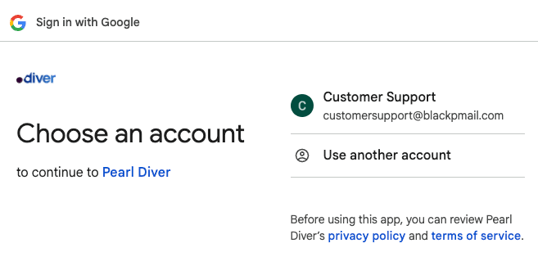Click **Continue** to proceed
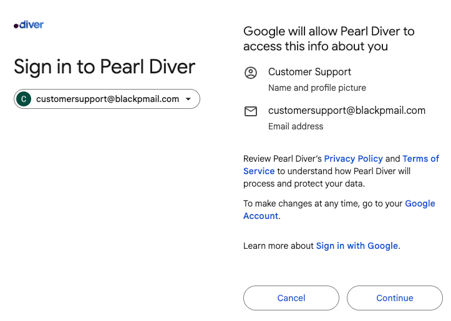
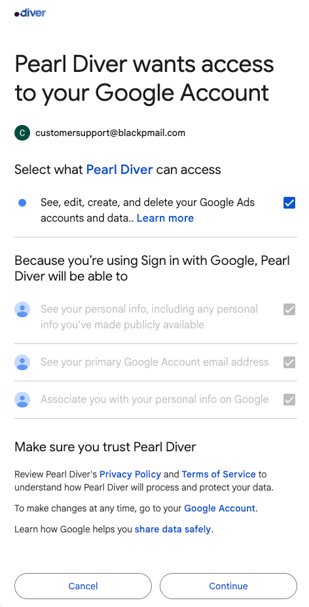
- **Select the box to allow Pearl Diver full access** to upload data to your Google Ad account. Pearl Diver will never delete accounts or data in your Google account. Click **Continue** to proceed.
- You will see a Pearl Diver confirmation page. Close this window to continue with the integration.
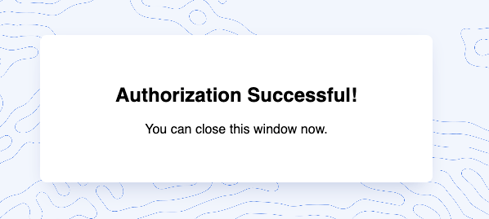Once you have closed the Authorization Successful window, the dashboard page will retrieve a list of the ad accounts your chosen Google ad account has access to.
- In the **Ad Account** drop down below the **Authorized as** section, select the Google ad account you would like to send the audience data to. Once selected, click **Update**.
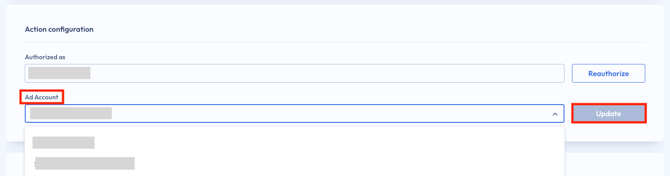
If a green check appears in the bottom right hand corner of your dashboard, you have successfully integrated your Google ad account with Pearl Diver!
If you receive an error, go to your Google Ads account and try to upload a customer list. You may need to contact their support team about getting customer matching enabled for your account.
Step 3 (optional): Send your website visitors to Meta for retargeting campaigns
\*only available with a Pearl Diver tracking pixel
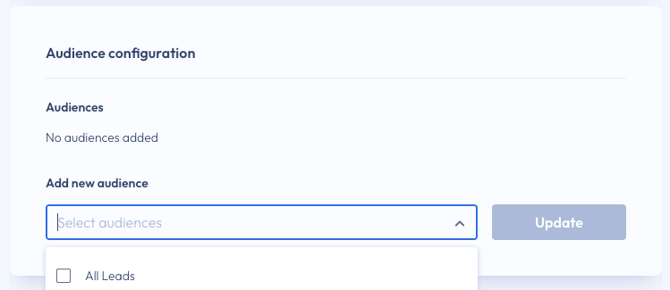
- In the **Audience Configuration** section (right below the Action Configuration) select the drop down menu to **Add New Audience. **If you would like all website visitors to be sent to Meta, select **All Leads **and click **Update**.
- How to segment website visitor data with [Pearl Diver Audiences](https://help.blackpearl.com/portal/en/kb/articles/how-to-create-an-audience-filter-in-pearl-diver?hsLang=en)
**❓ How will Pearl Diver audiences be displayed in my Google Ad account?**
- In your Google Ads Manager click on **Tools,** then **Shared Library,** and click on **Audience Manager**
**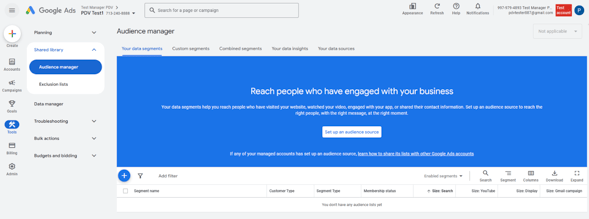**Data will import daily around 2:30pm EST and may take a few hours to complete the matching process, it can then take a few days for the contacts to be seen on the platforms Google Ads displays their adverts. Old data is automatically removed from the audience to ensure only the most relevant contacts remain.
**❓ Should I use Many to One and One to One Mapping**
When you authorize Google Ads for the first time in Pearl Diver, the system defaults to 1:1 audience mapping. This is the recommended setting for sending multiple audiences to your Google ad account to ensure you can identify the different audiences in Google.
1:1 One-to-One Mapping
Definition:
1. This setup allows you to create a direct, one-to-one connection between a single Pearl Diver audience and a single Google Ads audience.
2. The Google ads audience will be named as “PDV | XXXX”
**Key Characteristics:**
1. Exclusive Mapping:
1. A Pearl Diver audience can only sync to one specific Google Ads audience.
2. Similarly, a Google Ads audience can only receive data from one Pearl Diver audience.
2. Precision:
1. This setup provides precise audience control, ensuring that each Google Ads audience reflects a specific and clearly defined Pearl Diver audience segment.
2. Ideal for use cases where audiences need to remain distinct, such as targeting different customer segments (e.g., "High Intent Visitors”, "industry-specific”, “Freq. visitors” etc).
3. Dynamic Updates:
1. Pearl Diver will automatically update the mapped Google Ads audience by adding new contacts daily and removing contacts after 7 days (or based on the retention logic you configure).
4. Example Use Case:
1. The "High-Intent Buyers" audience in Pearl Diver maps directly to a Google Ads Audience named "High-Intent Buyers", used for targeted campaigns aimed at customers ready to purchase.
**Many-to-One Mapping**
**Definition:**
1. This configuration allows multiple Pearl Diver audiences to sync into a single Google Ads audience.
2. The default Google Ads audience will be named as “Pearl Diver”.
**Key Characteristics:**
1. Combined Audiences:
1. Multiple Pearl Diver audiences can be grouped together into one Google Ads audience.
2. This is useful when you want to consolidate data for broader campaign targeting.
2. Example Use Case:
1. Audiences like "High Engagement Visitors", and "Frequent visitors" are all synced to a single Google Ads audience named "General Retargeting" for a broad campaign.
**❓ Can I use Pearl Diver intent data to create audiences in Google Ads, given their rules about third-party data?**
Yes. Pearl Diver provides second-party data via a direct integration to the Google Ads platform, not third-party data. This means the data is sourced with full consent from trusted partners, making it compliant with Google’s requirements for audience creation.
If you'd like more detail, just let us know and we're happy to explain further.
**❓ How long does the audience retain data and does it update automatically**
Yes, the Pearl Diver Intent Audience has dynamic updates. Pearl Diver will automatically update the mapped Google Ads audience by adding new contacts daily and removing contacts after 28 days.
- [Troubleshooting](https://help.pearldiver.io/troubleshooting?hsLang=en#main-content)
- [Website Visitor Data - Pixels](https://help.pearldiver.io/troubleshooting?hsLang=en#website-visitor-data-pixels)
- [Integrations](https://help.pearldiver.io/integrations?hsLang=en#main-content)
- [Zapier](https://help.pearldiver.io/integrations?hsLang=en#zapier)
- [TikTok](https://help.pearldiver.io/integrations?hsLang=en#tiktok)
- [REST API](https://help.pearldiver.io/integrations?hsLang=en#rest-api)
- [Salesforce](https://help.pearldiver.io/integrations?hsLang=en#salesforce)
- [Mail apps](https://help.pearldiver.io/integrations?hsLang=en#mail-apps)
- [CRMs](https://help.pearldiver.io/integrations?hsLang=en#crms)
- [General](https://help.pearldiver.io/integrations?hsLang=en#general)
- [Google Drive](https://help.pearldiver.io/integrations?hsLang=en#google-drive)
- [SharePoint](https://help.pearldiver.io/integrations?hsLang=en#sharepoint)
- [MCP](https://help.pearldiver.io/integrations?hsLang=en#mcp)
- [Beeswax](https://help.pearldiver.io/integrations?hsLang=en#beeswax)
- [FAQs](https://help.pearldiver.io/faqs?hsLang=en)
- [Getting started](https://help.pearldiver.io/getting-started?hsLang=en#main-content)
- [Web Data](https://help.pearldiver.io/getting-started?hsLang=en#web-data)
- [Intent Data](https://help.pearldiver.io/getting-started?hsLang=en#intent-data)
- [Account Settings](https://help.pearldiver.io/getting-started?hsLang=en#account-settings)
- [Best Practices](https://help.pearldiver.io/getting-started?hsLang=en#best-practices)
- [First Time User Training](https://help.pearldiver.io/getting-started?hsLang=en#first-time-user-training)
- [General](https://help.pearldiver.io/general?hsLang=en#main-content)
- [Updates](https://help.pearldiver.io/general?hsLang=en#updates)
- [Support](https://help.pearldiver.io/support?hsLang=en#main-content)
- [Web Data](https://help.pearldiver.io/support?hsLang=en#web-data)
- [Cancel your account](https://help.pearldiver.io/support?hsLang=en#cancel-your-account)
- [Features](https://help.pearldiver.io/features?hsLang=en)
[](http://blackpearl.com)
**© 2025 Blackpearl Group Limited.**