
- A Revinate account and valid login credentials
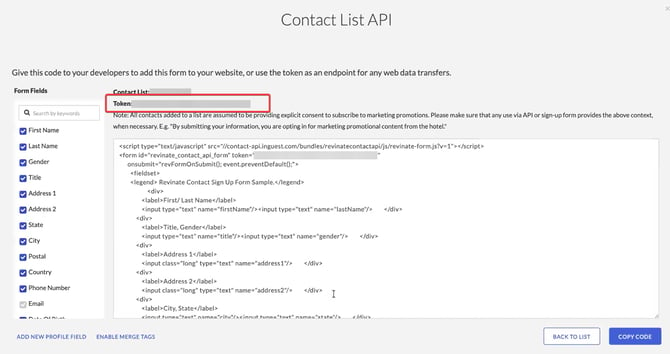
- A Revinate contact list Token you want to link to, per Pearl Diver Audience you want to send to Revinate.
- Ensure you have created an audience for the data you would like to send through the Revinate integration.
Steps in Revinate
-
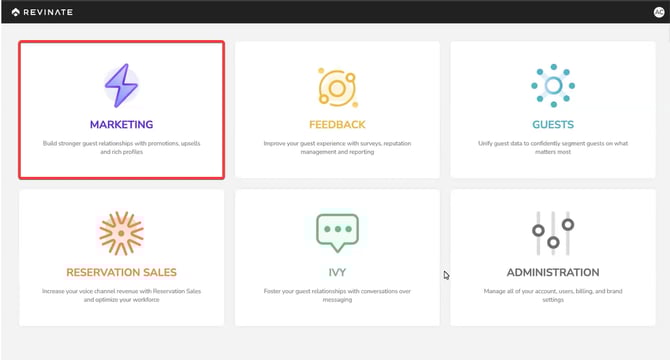
Go to the Marketing section
-
Select the account, if you only have one, it will auto select it for you.
-
Go to the Contact Lists

-
Click Create Contact List

-
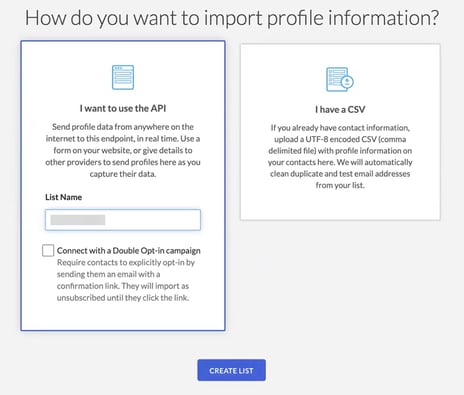
Select the API option and name the list.
-
This will then create the token for you to link a Pearl Diver Audience to.
Steps in Pearl Diver
Go to the Revinate Integration, either from the Actions on the Left menu, or by clicking the blue plus on the dashboard.
When adding an audience to the action in Pearl Diver, the system will prompt you to enter the Revinate Token (gathered from the steps above). Simply paste the Token and click add.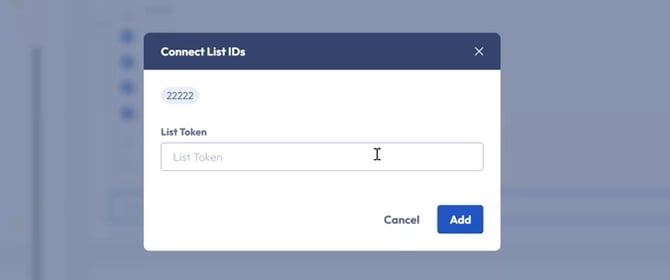
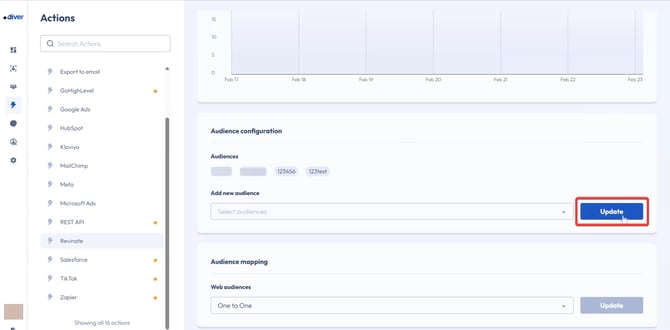
Once you have added the List Token, please ensure to click Update to confirm the changes. A confirmation pop up will appear when the settings have been successfully updated.
FAQs
❓How do I enable 1:1 Web audience mapping for the Revinate action?
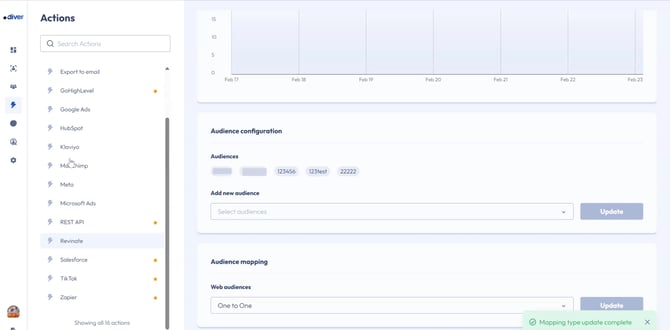
When you authorize Revinate for the first time in Pearl Diver, the system defaults to 1:1 audience mapping. Once authorization is complete, you can start adding audiences, and each audience in Pearl Diver will be mapped individually to the Revinate folder based on the Revinate key you linked it to.
❓Where can I change the audience mapping settings?
You can modify the audience mapping settings on the Actions page under the Audience Mapping section.
❓What happens when I change my audience mapping from 1:1 to many:1?
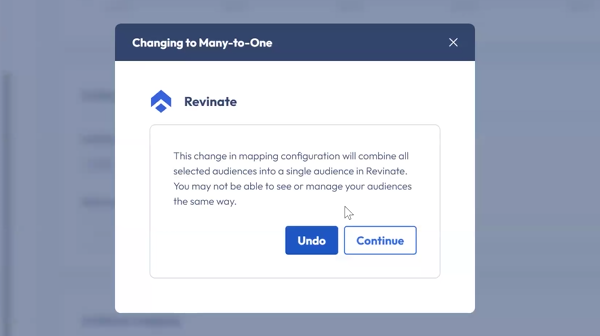
When you switch from 1:1 mapping to many:1, Pearl Diver will:
- Display the confirmation screen below.
-
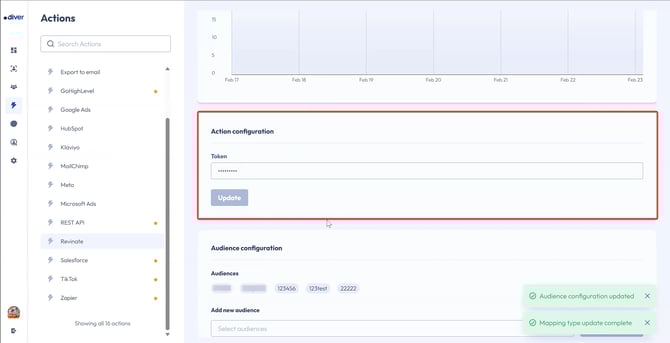
Displays a new section for which Revinate key you want to link with Pearl Diver.
❓What happens when I switch from many:1 to 1:1 mapping?
When switching from many:1 to 1:1, Pearl Diver will:
-
Prompt you to enter the Revinate key for each audience that has Revinate as an action.
- If you have previously selected a Revinate key for this audience, Pearl Diver will auto fill this for you and you can simply confirm it is the correct key.
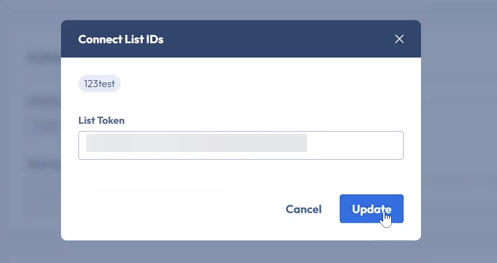
- Once all the Revinate Keys have been confirmed, the changeover will be complete.
- Once all the Revinate Keys have been confirmed, the changeover will be complete.
- If you have previously selected a Revinate key for this audience, Pearl Diver will auto fill this for you and you can simply confirm it is the correct key.