---
title: How to Create an Audience and Use Filters in Pearl Diver
description: Want to target the right visitors and turn them into leads? Our simple, step-by-step guide shows you how to set up audiences in Pearl Diver, so you can focus on the people who matter most.
---
[Skip to content](https://help.pearldiver.io/how-to-create-an-audience-and-use-filters-in-pearl-diver#main-content)
[Raise a Ticket](https://help.pearldiver.io/kb-tickets/new?hsLang=en)

Open main navigation
Close main navigation
- [Raise a Ticket](https://help.pearldiver.io/kb-tickets/new)
- [Contact us](mailto:support@blackpearl.com)
[Contact us](mailto:support@blackpearl.com)
How can we help you?
- There are no suggestions because the search field is empty.
1. [Pearl Diver Knowledge Base](https://help.pearldiver.io/?hsLang=en)
2. [Support](https://help.pearldiver.io/support?hsLang=en)
3. [Web Data](https://help.pearldiver.io/support?hsLang=en#web-data)
# How to Create an Audience and Use Filters in Pearl Diver
## Want to target the right visitors and turn them into leads? Our simple, step-by-step guide shows you how to set up audiences in Pearl Diver, so you can focus on the people who matter most.
#### **🤷♀️ What Is an Audience Filter?**
An **audience filter** lets you split up your website visitors into clear, meaningful groups based on demographics traits or behavior.
This makes targeting smarter, marketing sharper, and spending more efficient. Whether you’re defining your ICP or carving out high-interest segments, this tool helps you tailor your outreach.
🎥 Watch our quick training video [here to learn how to build audiences in Pearl Diver](https://www.loom.com/share/77d7515fa4e142dcb9fbcd8dbbbddc3a?sid=0f33a91e-aeca-4a01-a843-9553e5801c66)
---
#### **🛠 How to Build an Audience Filter**
1. **Sign in** to Pearl Diver
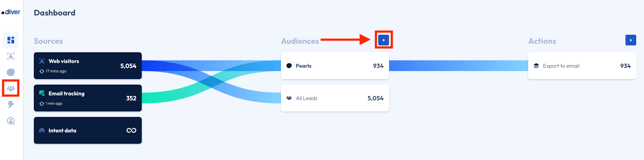
2. On the homepage of your dashboard, click the **“+” icon** next to **Audiences**.
You can also open the **Audience icon** in the left-hand menu.
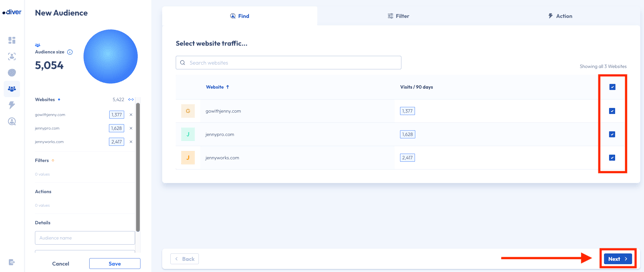
3. **Select Your Website(s)**
Choose the website(s) whose traffic you want to use for building your audience.
Once selected, click **Next**.
4. **Set Up Your Filters**
Now you’re in the **Filters section**.
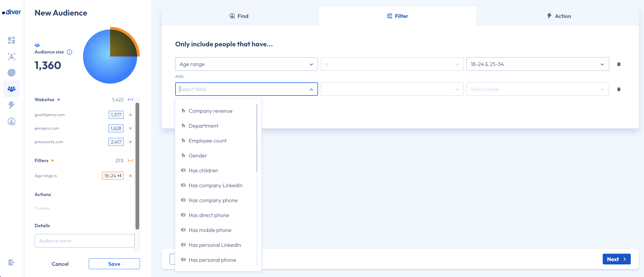
Each filter has three parts:
- **Identifier** – The attribute you want to target (e.g., “Age,” “Industry,” “Visit Count”).
- **Operator** – The condition for your identifier (e.g., “Is,” “Greater Than,” “Less Than”).
- **Value(s)** – The details (e.g., “25–34” for Age, “Sales and Marketing” for Industry, “5” for Visit Count).
💡 Tips for using filters:
- You can add up to **unlimited filters**, however keep in mind that your audience will get narrower the more filters you add.
- Don’t repeat the same identifier twice.
- Finish one filter before adding another.
- Click **“Add Filter”** to add more.
- Click the **Trash icon** to remove one.
5. **Check Audience Size and click Next**
Your audience size will calculate in real time. Once you’ve finished selecting and completing your filters, and are happy with the audience size, press **Next**.

6. **Choose an Action**
Decide where you want to send your data - whether that’s an **ad platform, CRM, email marketing tool, or export it to your email**.
- If you see your platform listed, select it and continue.
- **Don’t see your CRM or email tool?** You may still be able to connect it using **Zapier**, which links Pearl Diver with thousands of other apps. 👉 [Check out our Zapier guide here](https://app.hubspot.com/knowledge-article/45128402/editor/188129021584/content?redirectUrl=/knowledge/45128402/188129021307/articles/state/all)
- **Not ready to send the data anywhere?** No problem, you can skip this step and move straight to **Step 7**
7. **Name Your Audience**
Give your audience a clear name. You can also add a description (optional).
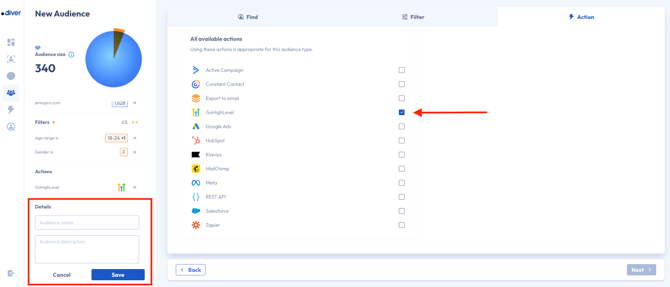
8. **Save Your Audience**
When you’re happy with your setup, click **Save**. A popup will appear with two options:
- **Save** **and Favourite** – This will pin the audience to your dashboard homepage for quick access. (Note: You can only have up to **6 favourites** on the dashboard)
- **Save Only** – Your audience will still be saved, but it will live in the **Audiences section** instead of the homepage.
****
---
#### **📋 Quick Overview**
| Step | What to Do |
| --- | --- |
| 1 | **Sign in** and click “**+**” next to the Audiences section |
| 2 | Select your **website**(s) |
| 3 | Apply your **filters** |
| 4 | Check your **audience size** |
| 5 | **Export** or connect to a **destination** |
| 6 | **Name** your audience |
| 7 | **Save** your audience |
- [Troubleshooting](https://help.pearldiver.io/troubleshooting?hsLang=en#main-content)
- [Website Visitor Data - Pixels](https://help.pearldiver.io/troubleshooting?hsLang=en#website-visitor-data-pixels)
- [Integrations](https://help.pearldiver.io/integrations?hsLang=en#main-content)
- [Zapier](https://help.pearldiver.io/integrations?hsLang=en#zapier)
- [TikTok](https://help.pearldiver.io/integrations?hsLang=en#tiktok)
- [REST API](https://help.pearldiver.io/integrations?hsLang=en#rest-api)
- [Salesforce](https://help.pearldiver.io/integrations?hsLang=en#salesforce)
- [Mail apps](https://help.pearldiver.io/integrations?hsLang=en#mail-apps)
- [CRMs](https://help.pearldiver.io/integrations?hsLang=en#crms)
- [General](https://help.pearldiver.io/integrations?hsLang=en#general)
- [Google Drive](https://help.pearldiver.io/integrations?hsLang=en#google-drive)
- [SharePoint](https://help.pearldiver.io/integrations?hsLang=en#sharepoint)
- [MCP](https://help.pearldiver.io/integrations?hsLang=en#mcp)
- [Beeswax](https://help.pearldiver.io/integrations?hsLang=en#beeswax)
- [FAQs](https://help.pearldiver.io/faqs?hsLang=en)
- [Getting started](https://help.pearldiver.io/getting-started?hsLang=en#main-content)
- [Web Data](https://help.pearldiver.io/getting-started?hsLang=en#web-data)
- [Intent Data](https://help.pearldiver.io/getting-started?hsLang=en#intent-data)
- [Account Settings](https://help.pearldiver.io/getting-started?hsLang=en#account-settings)
- [Best Practices](https://help.pearldiver.io/getting-started?hsLang=en#best-practices)
- [First Time User Training](https://help.pearldiver.io/getting-started?hsLang=en#first-time-user-training)
- [General](https://help.pearldiver.io/general?hsLang=en#main-content)
- [Updates](https://help.pearldiver.io/general?hsLang=en#updates)
- [Support](https://help.pearldiver.io/support?hsLang=en#main-content)
- [Web Data](https://help.pearldiver.io/support?hsLang=en#web-data)
- [Cancel your account](https://help.pearldiver.io/support?hsLang=en#cancel-your-account)
- [Features](https://help.pearldiver.io/features?hsLang=en)
[](http://blackpearl.com)
**© 2025 Blackpearl Group Limited.**