✅ Prerequisites
To authorize the Google Drive integration within Pearl Diver and enable data syncing for Custom Audience creation, ensure the following:
-
A Google account with access to the Google Drive folder where data will be exported.
-
A folder in google drive where data can be uploaded
-
At least one Custom Audience already created in Pearl Diver.
Key Capabilities
-
Export Custom Audience data to Google Drive in CSV format.
-
Secure authentication using Google OAuth.
-
Supports configuration at the audience level for targeted data exports.
-
Enables seamless audience data sync between Pearl Diver and Google Drive.
🛠️ How to Set Up the Google Drive Integration
Step 1: Connect Your Google Account to Pearl Diver
a) Log into your Pearl Diver account.
b) Go to the Actions page.
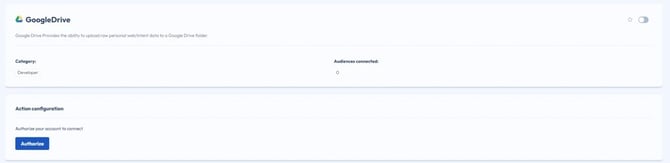
c) Click on the Google Drive action to open the integration configuration screen.
Step 2: Authorize with Google
a) Click Connect with Google.
b) A Google login window will appear. Sign in with the Google account that has access to your Google Drive.
c) Review the requested permissions and click Allow to authorize Pearl Diver to access your Google Drive.
d) You will need to select which folder you want the Pearl Diver files to go into, you might need to create a folder in your Google Drive before completing this step.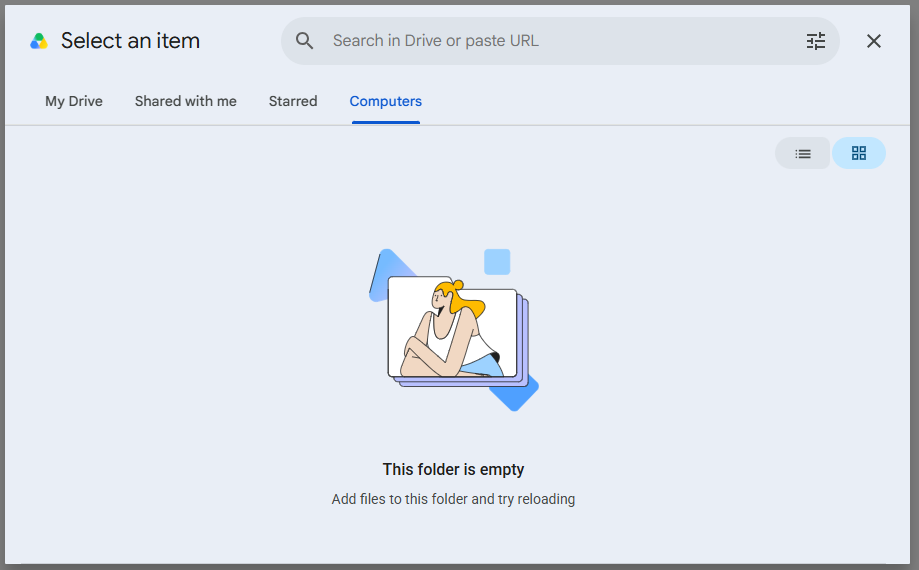
e) Once authorized, your Google account will show as connected and you will be returned to Pearl Diver.
Step 3: Select a Storage Drive
a) In the Action Configuration panel, click the Storage Drive dropdown.
b) Folders you selected in you google drive will be available options
c) Select the folder where audience data should be exported.
d) Click Update to save. Data will sync into the the selected folder
Step 4: Add Audience Configuration
Once authorized, you can configure which audiences from Pearl Diver should export their data to the connected Google Drive folder.
-
Under Audience Configuration, select one or more audiences to connect.
-
Click Update to save the configuration.
🔍 Where It Appears in Google Drive
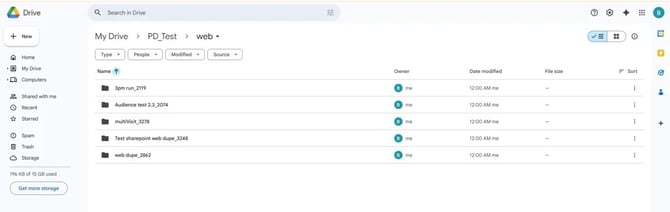
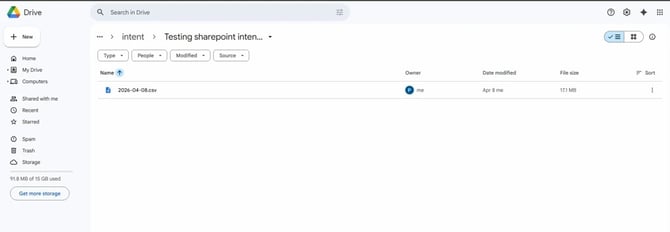
Once the audiences are successfully synced, data will be exported as CSV files to your connected Google Drive folder. The audiences that are successfully uploaded will be placed in a folder with the audience name and key (audienceName_audienceKey) which will be inside a parent folder with the audience type as its name (either web or intent).